
Basics
The screen, selecting, moving things and the camera.
The screen
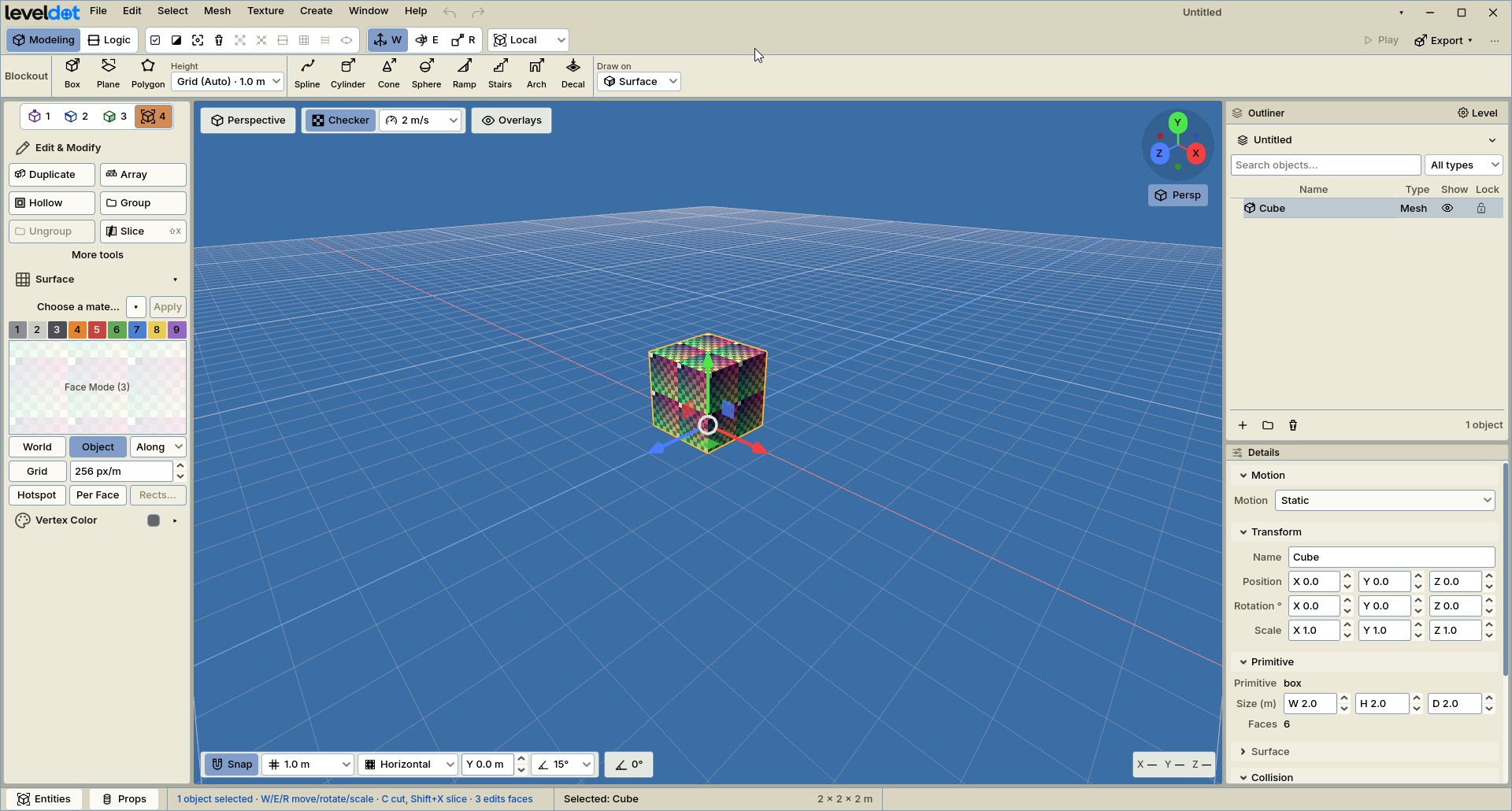 1234567
- Menu and toolbar: modes, Move / Rotate / Scale, Play, Export.
- Blockout bar: the shapes you draw.
- Tools F6: selection modes and the tools for what is selected.
- 3D view: where you build.
- Outliner: every object of the level.
- Details: the selected object's settings.
- Status bar: what you can do now. Read it when a step does not work.
Hide or show the side panels: Tools F6, Outliner and Details F7orAlt+O. Too small or too large: Window → UI Scale (75 % to 150 %).
Outliner and Details
- Outliner: drag rows onto a group to put them in, or onto a loose row to take them out. F2 renames.
- Collections are folders: + in the Outliner's title row makes one, drag rows onto it, folders nest. In Godot each collection is a node with its objects under it.
- Details: drag a number sideways to change it. Shift drags finer, Ctrl snaps, Esc puts it back.
- Right-click a number: Reset, Copy, Paste.
Camera
| Do | How |
|---|---|
| Look around | Hold Right mouse and move |
| Fly | Hold Right mouse and press W A S D; Q and E go down and up |
| Pan | Drag with Middle mouse |
| Zoom | Wheel |
| Orbit | Alt+Left drag |
| Frame the selection | F |
| Four views | Alt+QorCtrl+Alt+Q |
Selection modes
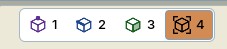
1Vertex
2Edge
3Face
4Object
The mode decides what a click selects. These four keys never change.
| Do | How |
|---|---|
| Select | Click |
| Add or remove | Shift+Click |
| Select many | Drag a rectangle |
| Connected faces, or an edge loop | Double-click |
| Everything, nothing | Ctrl+A, Alt+A |
Move, rotate, scale
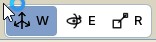
WMove
ERotate
RScale
GGrab
- Drag an arrow or ring of the gizmo for one axis, a square for a plane.
- Exact values: while dragging, type a number and press Enter. Esc cancels.
- Fine steps: hold Shift while you drag the Move gizmo: 1 cm at a time.
- Grab moves with the mouse. Press X, Y or Z to lock an axis.
Snap to corners, edges and faces
Hold Caps Lock while you drag a gizmo or Grab, and point the mouse at something in the level. The selection lines up with it.
1 · Drag
Move a selection
With the gizmo, or G.
hold Caps Lock
2 · Point
At a corner, edge or face
A yellow dot marks the spot.
release the mouse
3 · Done
Lined up exactly
- It catches corners, edge middles, face centres, and any point on an edge or a face, on props too.
- Ctrl does the same while held.
Proportional editing
Press O (or the Proportional button beside World) to bend a mesh softly instead of moving single corners.
1 · Select
A few corners, edges or faces
O on, then G / W / E / R
2 · Drag
Nearby corners follow
Less the farther they are.
Wheel while dragging
3 · Reach
The circle grows or shrinks
- Works in Vertex, Edge and Face Mode, on the same mesh.
- Good with Draw Grid on the Tools page: hills, dents, uneven ground.
Undo and repeat
| Do | Key |
|---|---|
| Undo | Ctrl+Z |
| Redo | Ctrl+Y |
| Repeat the last Extrude, Inset or Bevel | Shift+R |
| Duplicate | Ctrl+D |
| Delete | Del |